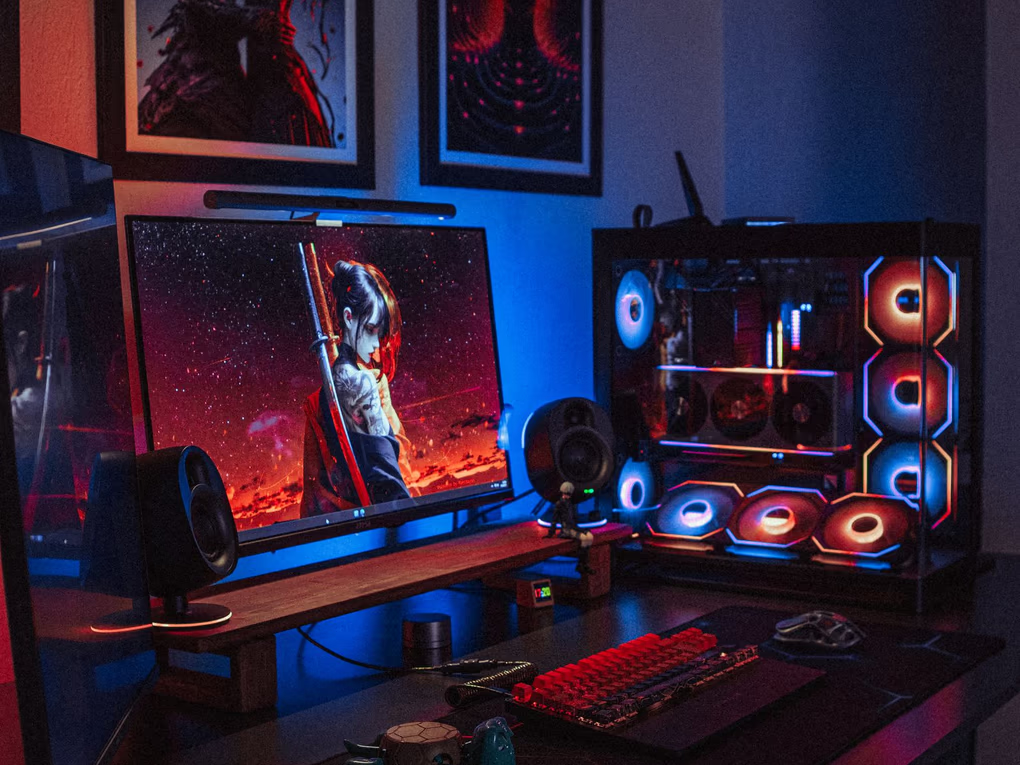
You have 340GB of capture sitting on a second drive. Somewhere in there is a 1v4 clutch, two funny deaths, and a round where everything went right. The problem is not that you lack material. The problem is that six hours of raw gameplay is mostly walking, looting, loading screens and a friend asking whether anyone has a spare battery.
Editing gaming footage is a search problem first and a craft problem second. The search is finding the twelve seconds that matter. The craft is presenting those twelve seconds so a stranger who does not play your game still feels the spike.
This is a practical walkthrough of both halves. It assumes you are working from OBS, ShadowPlay, a console clip folder or all three, and that you want either a montage for YouTube or vertical clips for TikTok, Reels and Shorts. Most of it would be true in any editor. Where Vidmoat saves you an hour, that is called out.
01 / FIELD NOTESFind the moment before you open the timeline
The single biggest time sink in gaming editing is scrubbing. If you drag the playhead through six hours looking for the good part, you will burn an evening and still miss things. Attack the search from the audio instead.
Gameplay has a reliable acoustic signature. The moments you want are almost always the loud ones: a burst of gunfire, a teammate yelling, your own voice going up half an octave. The moments you do not want are almost always quiet: rotating, crafting, menus, the ninety seconds between rounds. So the fastest first pass is not visual at all. Strip the dead air and look at what is left.
In Vidmoat, trimSilence does this across a long capture in one command. It replaces the clip with a set of clips covering only its non-silent portions, keeping any effects and keyframes you already applied. On a two hour raid recording that typically collapses to twenty or thirty candidate blocks, which is a list you can actually watch. It is not a highlight detector and it does not know what a clutch is. It just deletes the boring silence so your eyes only have to judge the noisy parts.
Second pass: watch those blocks at 2x with the audio on and mark in-points. Do not trim yet. Just note where each moment begins. A moment almost always starts earlier than you think, because the viewer needs about a second of context to understand what they are looking at before the payoff means anything.
- Import the full capture without pre-trimming it in another tool.
- Run silence trimming across the whole thing to get candidate blocks.
- Watch the blocks at double speed, marking start and end times in a text file.
- Only then start building the sequence from the marked ranges.
02 / FIELD NOTESA highlight is shorter than you think it is
Ask an editor to cut a highlight and they hand you 25 seconds. Ask a viewer how long the highlight was and they will tell you it dragged. The gap is real.
A single moment, one kill sequence, one clutch, one impossible shot, wants roughly 4 to 8 seconds on screen. That is enough for setup, execution and one beat of aftermath. Anything past that and you are showing the walk back to cover. A montage entry is even tighter: in a fast montage each entry runs 1.5 to 3 seconds, because the montage is not about any one kill, it is about the accumulation.
The aftermath is where most edits bleed. You get the kill, and then you leave four seconds of the player reloading because you want to let it breathe. It does not breathe. It sags. Cut out roughly a third of a second after the impact, on the next beat, while the viewer is still processing what happened. The feeling of speed in a good montage comes almost entirely from leaving earlier than is comfortable.
The exception is a commentary edit, where you are talking over the play and the talking is the content. There the pacing is set by your voice, not the action, and holding on a slower shot while you explain a decision is correct. Do not apply montage pacing to a commentary video. They are different formats with different contracts: a montage promises intensity, a commentary promises insight.
03 / FIELD NOTESThe kill should land on a beat, and the ramp into it should be rationed
This is the difference between footage that feels edited and footage that feels assembled, and it is not subtle once you notice it.
Pick the track before you cut the picture. Find the downbeats. Then retime each entry so that the impact frame, the kill confirmation, the headshot marker, the win screen, sits on a downbeat rather than a random moment between two. You are not making a music video. You are borrowing the fact that the human ear is already predicting the next beat, so an event that lands on it feels intentional and slightly inevitable.
Practically, that means adjusting where each clip starts, not where it ends. If the kill happens 1.2 seconds into a clip and the nearest downbeat is at 4.0 seconds on the timeline, the clip starts at 2.8. Do that by hand for eight entries and you will learn a lot. Do it for forty and you will stop making montages.
Vidmoat detects tempo natively and snapToBeat retimes clips onto that grid so the cuts land on the beat, moving clips in groups by default so the sequence stays intact. If you want the grid visible for manual work instead, addMarkers can lay down a whole beat grid at once and sliceClip will cut on those marker times. Either way the useful discipline is the same: decide the grid first, fit the footage to it second.
One warning. A montage where every single cut is on the beat becomes metronomic and oddly boring after about forty seconds. Break it deliberately: hold one entry for two full bars around the two-thirds mark, then resume. The break is what makes the rest feel tight.
Ramping into a moment is the natural partner to beat alignment, and also the most abused technique in gaming edits. The shape that works: come in slightly fast, around 1.3x through the approach, drop to 0.4x for the half second around the impact, then snap back to 1.0x within about a quarter of a second. The slow section should be short. A two second slow-motion section reads as padding. A four frame hold reads as emphasis.
Vidmoat supports playback speed from 0.05x to 10x with ramps, and source time is computed as the integral of the speed curve, which matters more than it sounds: it means a ramp does not knock the rest of your clip out of sync with itself. But it will change the clip length on the timeline, so ramp before you beat-align, not after. Ramping a beat-aligned sequence pushes every subsequent cut off the grid.
Use a ramp on at most two or three entries in a 60 second montage. The ones you choose should be the ones with a genuine visual event to slow down. Ramping a mediocre kill does not make it a good kill, it makes it a mediocre kill in slow motion.
04 / FIELD NOTESThree audio sources, one mix, and the mistake everyone makes
Game audio, microphone and music. Every beginner gaming edit has all three at similar levels, which means all three are unintelligible. This is the most common reason a technically fine edit feels amateur.
Decide which source is carrying the video, then subordinate the other two. In a montage, music leads: game audio sits underneath as texture, loud enough that gunfire and ability sounds punch through on the hits and nowhere else. In a commentary edit, your voice leads: music sits far below, game audio sits between them, and both duck whenever you speak.
A workable starting point for a commentary mix, adjusting by ear afterwards: voice as the reference, game audio around 12 to 18 dB below it, music around 20 to 25 dB below it. Those numbers are a place to begin, not a target. The real test is playing it back on phone speakers, because that is where most of your audience will hear it, and phone speakers flatter nothing.
Vidmoat has autoDuck, which rewrites the music clip volume keyframes wherever voice plays, with smooth ramps rather than hard steps. That handles the music-under-speech relationship automatically. Game audio needs a decision from you, because ducking it too hard removes the thing that makes gameplay legible. If your capture recorded everything to one track, separateAudio detaches audio from a video clip onto its own track so you can treat it independently.
On cleanup, be realistic. Vidmoat's noise reduction is a high-pass filter, useful against low rumble and some fan noise, and its loudness normalisation is peak based rather than LUFS. It will not rescue a microphone recorded in a room with an air conditioner. Fix that at the source: the single highest-leverage upgrade for a gaming channel is a microphone closer to your mouth, not a better plugin.
05 / FIELD NOTESCropping 16:9 gameplay to 9:16 without losing the crosshair
Vertical gaming clips are hard because a game HUD is designed for a wide frame. The crosshair is centred, the health bar is bottom left, the minimap is top right and the killfeed is top right underneath it. Crop naively to a centre 9:16 column and you keep the crosshair and lose everything that explains the play.
Work out what the clip actually needs before you crop. A gunfight clip needs the crosshair and the killfeed, and can lose the minimap. A rotation or positioning clip needs the minimap and can lose the killfeed. A survival clip needs the health bar. You almost never need all four, and trying to keep all four produces a cramped frame where nothing is readable.
Three approaches, in increasing order of effort. One: crop to the centre column and let the HUD go, adding your own on-screen text for anything essential. Two: crop to centre for the top two thirds and place a scaled-down copy of a HUD region below it, which reads clearly on a phone because the element is now larger relative to the frame. Three: track the action rather than fixing the crop.
That third option is what auto-reframe is for. Vidmoat writes per-clip keyframes so the crop follows a subject as the aspect ratio changes, rather than sitting on a static centre crop. For third-person games where your character moves around the frame, following the subject is clearly better than a fixed crop. For first-person shooters the centre is already the action, so a static centre crop is usually right and the work is all in what you reintroduce around it.
Whichever route you take, check the result on an actual phone before you commit to twenty clips. Text that is comfortably legible on a 27 inch monitor at 100% zoom can be unreadable at the size a phone actually renders it.
- List the HUD elements this specific clip needs to make sense.
- Choose static centre crop for first-person, subject-following reframe for third-person.
- Reintroduce essential HUD info as your own larger on-screen text if the crop removed it.
- Review one finished clip on a phone before batching the rest.
06 / FIELD NOTESYes, gameplay needs captions
It feels wrong. The footage is visual, the action is self-explanatory, and there is no talking head. Caption it anyway.
Most feeds autoplay muted, so a viewer scrolling past your clip gets picture only for the first second or two. If your commentary carries the joke or the explanation, and the sound is off, the clip is silent nonsense. Captions convert that silent second into a reason to unmute.
For gameplay, word-level captions beat sentence blocks by a clear margin, because the timing is doing work that line-level subtitles cannot. When a single word highlights on the frame where the kill lands, the caption becomes part of the edit rather than an accessibility layer sitting on top of it. Vidmoat lays out a word-level transcript as timed, karaoke-styled caption clips, so individual words highlight as they are spoken, and restyleCaptions changes the look across every caption clip at once when you settle on a house style.
Placement matters more in gaming than elsewhere. Do not put captions in the bottom centre, where the platform overlays its own username, description and buttons, and where many games put ammo and health. Raise them into the lower third of the safe area. The applyLayout command has a caption-safe layout that pushes the video up and keeps the bottom strip clear, which is a one-command fix for a problem that otherwise costs you an hour of nudging.
Keep them short. Two or three words on screen at a time reads at scroll speed. A full sentence does not.
07 / FIELD NOTESA working order of operations
Sequence matters, because several of these steps invalidate the ones before them. Ramping after beat-aligning breaks the alignment. Cropping before you have picked your final clip lengths wastes work. Captioning before you cut means recaptioning.
The order below survives contact with a real project. It also means the expensive human judgement, choosing which moments are good, happens once and early, while the mechanical work happens after and can be redone cheaply if you change your mind about the music.
One more thing worth saying plainly: the edit cannot save a moment that was not interesting. If you find yourself adding a third speed ramp, a screen shake and a zoom to a mid clip, the clip is telling you something. Cut it and move on. A 45 second montage of six genuinely good moments beats a 90 second montage of six good moments and eight filler ones, every time.
- Trim silence across the raw capture to produce candidate blocks.
- Watch at speed, mark in and out points, and choose the music.
- Assemble the chosen moments roughly, longest acceptable version of each.
- Apply speed ramps to the two or three entries that earn one.
- Snap the cuts to the beat grid, then deliberately break the grid once.
- Balance the three audio sources and duck music under any speech.
- Export the 16:9 master.
- Reframe to 9:16 per clip, add word-level captions in the caption-safe zone, export the verticals.
Common questions
How long should a gaming montage be?
For a first montage, aim for 45 to 75 seconds with six to ten entries. Longer montages are not harder to edit, they are harder to fill, and the usual failure is padding a two minute runtime with moments that would not have made a one minute cut. If you have genuinely strong material for three minutes, use it, but count your entries honestly first.
Should I edit the 16:9 version or the vertical version first?
Edit 16:9 first, then derive the verticals from it. The wide version forces you to make the pacing and audio decisions on the full frame, and reframing a finished cut is mechanical. Going the other way means re-expanding a crop you already threw away information from.
What do I do about copyrighted music?
Assume any commercial track will be claimed on YouTube and may be muted or blocked on short-form platforms. That does not just cost you revenue, it can silence a montage whose entire structure depends on the music. Use licensed or royalty-free tracks, and pick the track before you cut, because switching music after beat-aligning means redoing the alignment.
My capture has my voice and my friends on Discord in the same track. Can I separate them?
Not after the fact in any reliable way. If you want independent control over each voice, record each participant to a separate track at capture time, which OBS supports through separate audio sources. If you already have them mixed, treat the combined voice track as one source and mix game audio and music around it.
Is trimming silence going to cut off the start of a callout?
It can, on a quiet first syllable. Trimming produces clips covering the non-silent portions, so review the head of each block and pull the start earlier where a word got clipped. In practice you will adjust a handful out of thirty, which is still far faster than scrubbing the whole capture.
How many clips should I get out of one recording session?
From a two hour session with decent play, two to four vertical clips and one montage is a realistic yield. If you are consistently getting eight strong clips from two hours, either you are unusually good or your standard for strong is too low. Reviewing your own output a week later is a surprisingly reliable calibration exercise.